
Starting a Live
You can start a live manually or you can enable the Auto-live at startup. See Enabling / Disabling Auto-Live at Startup.
Unit Panel
To start the Live:
From the Home menu, click on

. The video preview appears on screen and the live profile selected is reminded. When clicking on

or

, the Live menu provides some additional information.
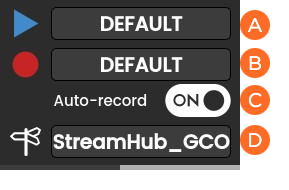
 Selected Live Profile
 Selected Record Profile
 Auto-record is enabled or not (OFF/ON)
 The Selected Destination Profile
You can modify these settings before starting the Live action.
To select another Live profile:
Click on the
 field.
Click on another Live profile.
To select another Record profile:
Click on the
 field.
Click on another Record profile.
To modify the Auto-Record mode:
Click on the
 or
or  button option to toggle the setting.

Note
Simultaneous Live and Record in H.264 1080p50/59.94/60 is not supported.
To select another Destination profile:
Click on the
 field.
Click on a different Destination profile.
Click on
to start the Live. The video preview appears on screen.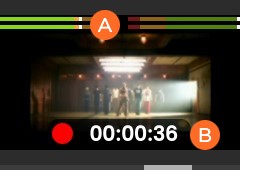 Audio Bars indicating Audio Levels Live Duration
Click on
to display information about the Live action.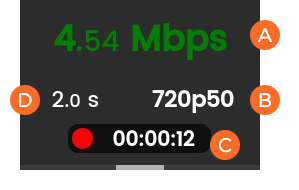 Network Bitrate Source Standard Live Duration End-to-End Latency configured in the Live Profile or modified remotely from StreamHub interface.
Note
Refer to the StreamHub User Guide to set another delay during Live operation.
In case of a live and simultaneous Record, a different screen appears:
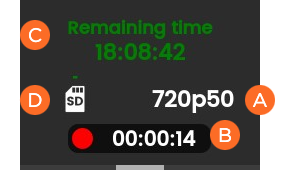
Source Standard Record Duration Remaining recording time possible on SD card. Space used on SD card.
To stop the Live:
Click on
.Click on
 .
. Click on
 to confirm.
To stop the Record:
Click on
.Click on
 .
.Click on
to confirm.
Web Interface
To start the Live:
Click
 to check that the unit settings are configured and selected as required:
Live profile
Auto-record mode (OFF / ON)
Record profile
Auto-forward option (OFF / ON)
Destination profile
Note
If you enable the Auto-record option, the video file is automatically recorded during the live.
Click
to start the Live.
To stop the Live:
Click
. A  popup appears.
Click
or the icon to stop the video transmission.