
Creating a Route

Prerequisites
Before you create a route, ensure the following:
All field units that you are using as sources have Hub 360 set as a destination profile, and all Makito devices are paired to Hub 360. See Adding an Appliance for more details.
The StreamHub used for the route is registered in the Hub 360 fleet.
All nodes (encoders and IP output profiles) have been previously defined on the StreamHub application, else they do not appear in Hub 360. You can refer to the Configuring Encoder Profiles and Configuring IP Output Profiles topics in the StreamHub User Guide.

Tip
See Creating a Video Transmission and Create a Makito Encoder to Decoder SRT Connection for more thorough walkthroughs of creating a route.
To create a route:
Click Master Control on the sidebar.
In the Routes pane, click the Receivers
 dropdown menu to select the receiver you want to use for the new route.
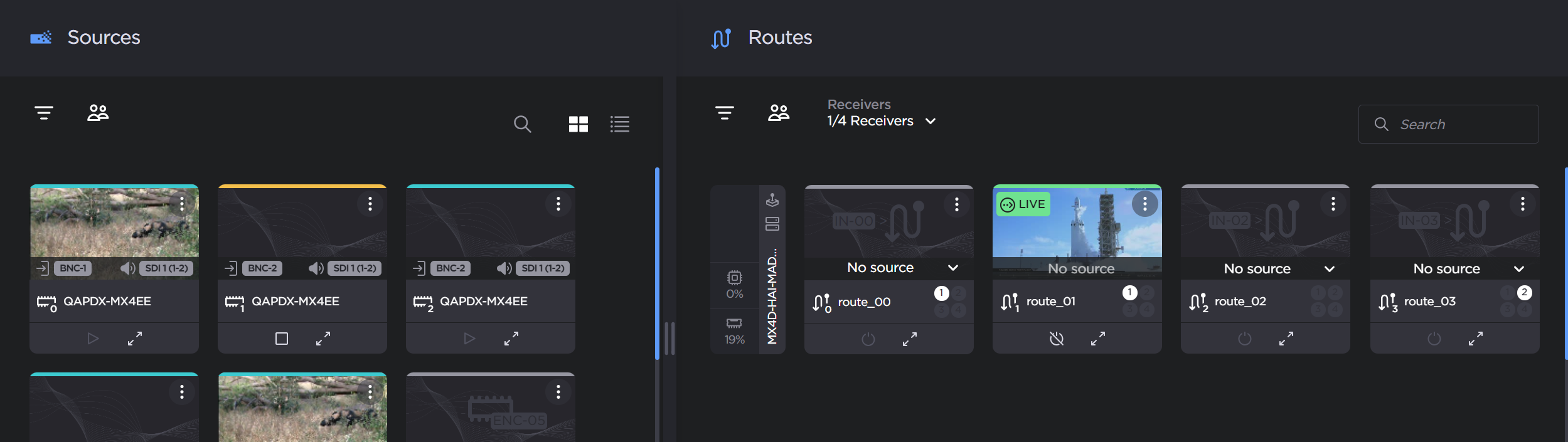
Receivers dropdown
To use a source for the route, you can either:
Drag and drop the source tile from the Sources pane to the Routes pane.
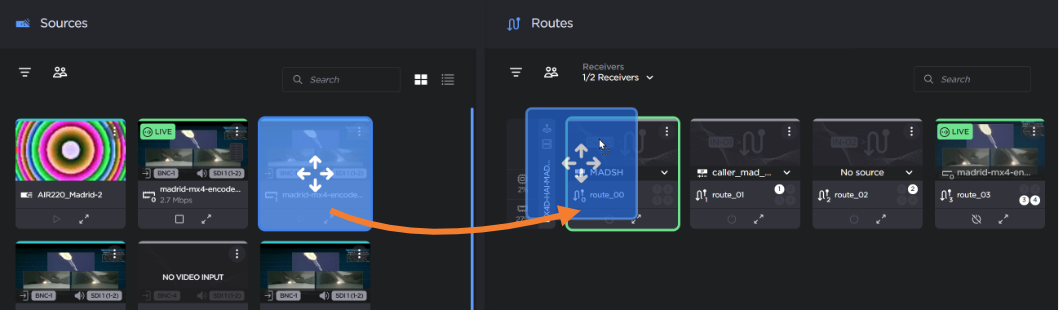
Tip
If a route cannot be created when dragging the source tile, the reason is listed on the route:
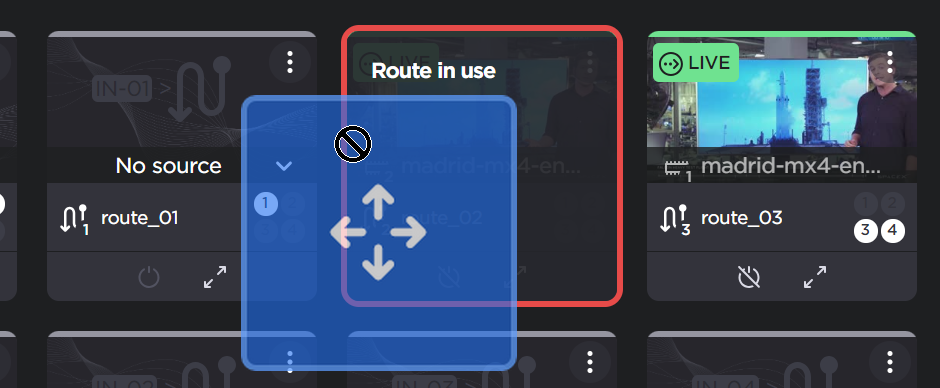
Route In Use
Select a source from the drop-down list on a route tile.
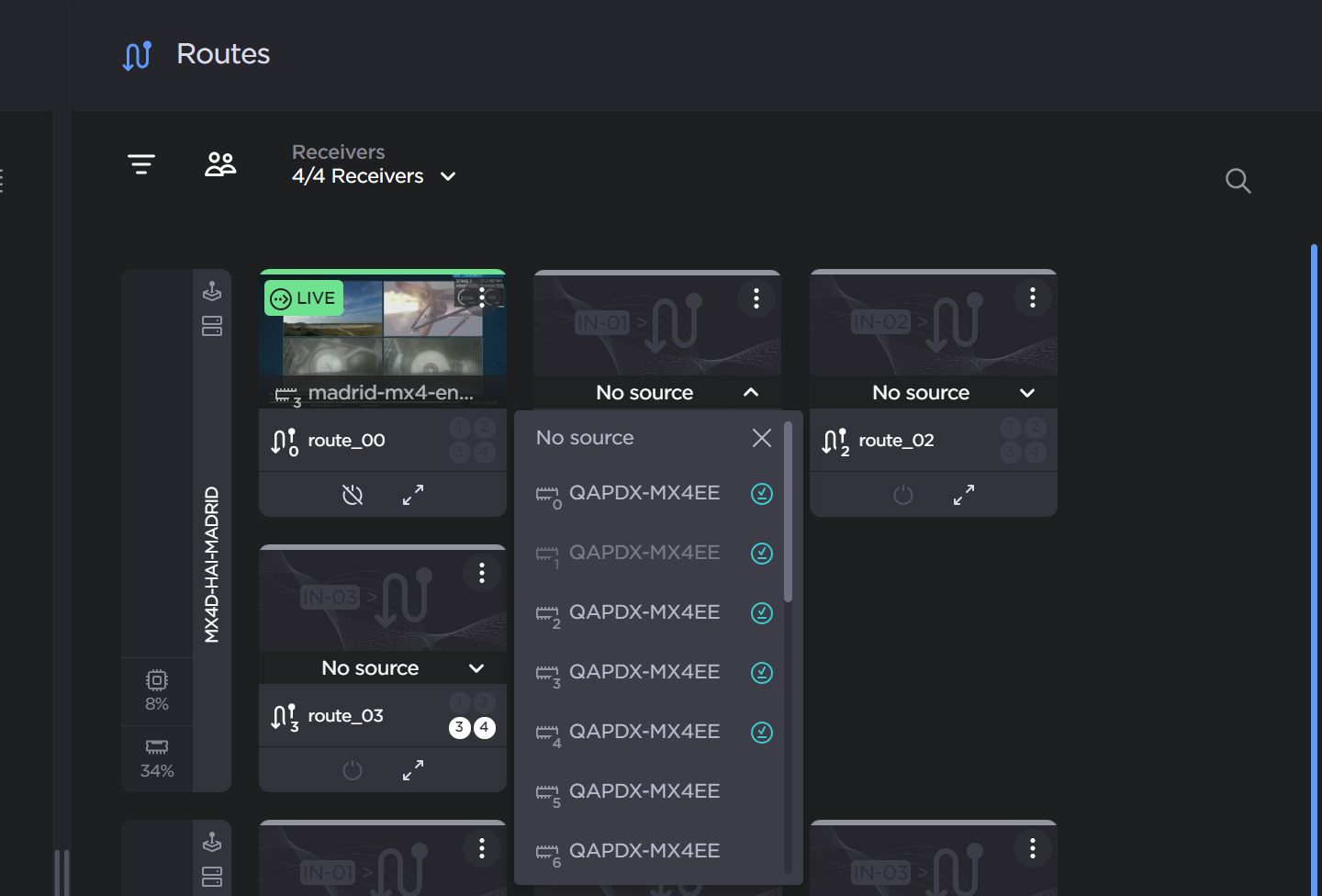
Source dropdown
Tip
When you hover over sources that cannot be selected, a tooltip appears showing the reason.
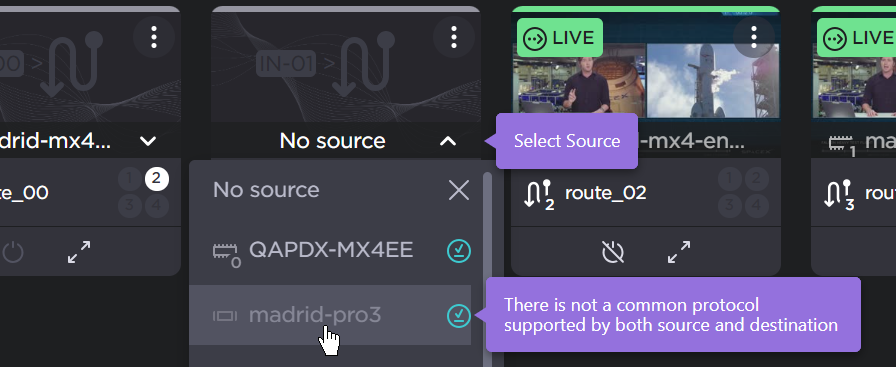
Source Tooltip

Note
When a StreamHub input is assigned a data bridge connection with a transmitter, the source cannot be changed for this input, even when it is not Live. A  icon appears in the Routes tile to indicate this:
Data Bridge icon
Note
The following limitations apply to external source and receivers:
External sources can only be routed to Makito Decoders and StreamHubs (on-premise and cloud).
Only Makito Encoders can be routed to external receivers.
For Makito devices, the route is created and the stream starts.
For StreamHub devices, after you have added your source and if the route has yet to be configured, a Route Configuration modal appears for you to select the outputs you would like to use for your stream.
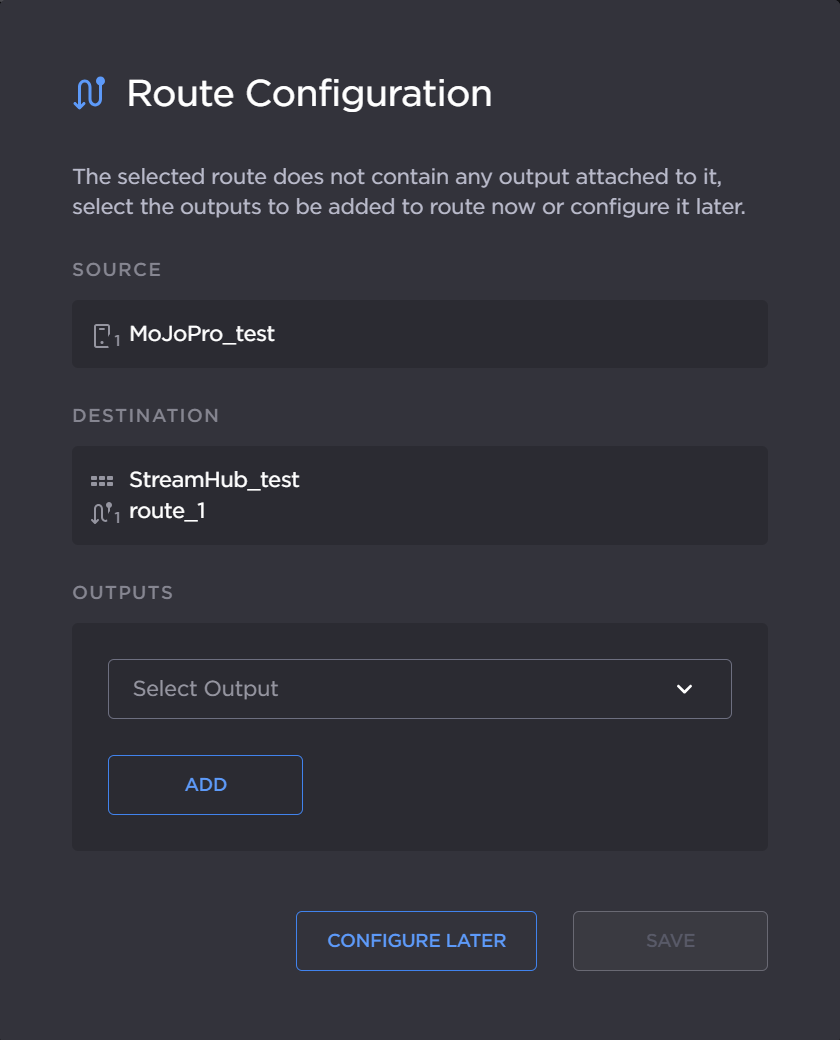
Route Config dialog
Click the Output dropdown, and select an available output.
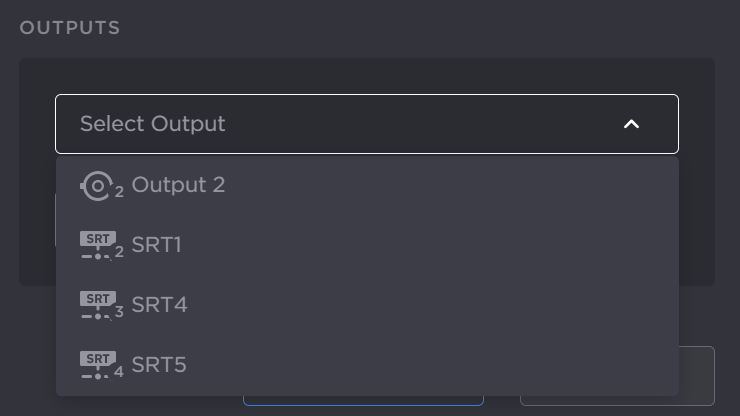
Output dropdown
Tip
If no outputs appear, you must create the IP output profiles first on your StreamHub. Click the Configure Later button, reference Configuring IP Output Profiles topic in the StreamHub User Guide to add the profiles, and Editing a Route and Working with Routes to update your route.
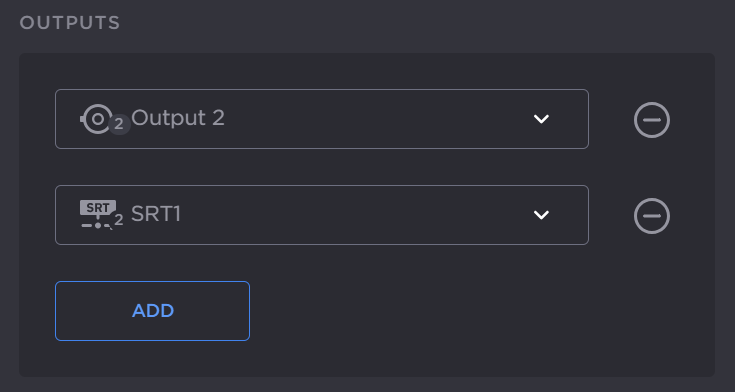
To add multiple outputs to the route, click the Add button and select another available output.
Click the Save button.
The route is created and the stream starts.