
Managing Web Interface Access
You may limit access to the Gateway web interface to trusted IP address ranges on the Access screen. When enabled, only users connecting from approved networks (IP addresses or CIDR ranges) are allowed to access the web interface.
To limit access to the web interface:
In the bottom of the sidebar, click
 >
>  Security.
Click Access in the navigation toolbar.
Toggle the Restrict Admin Access by Network toggle to On.
Enter the base IP addresses to allow in the Address box and specify the size of the allowed network range in the CIDR Notation/IPv6 Prefix text box. The following example limits users from only the 192.168.1.x IP addresses:
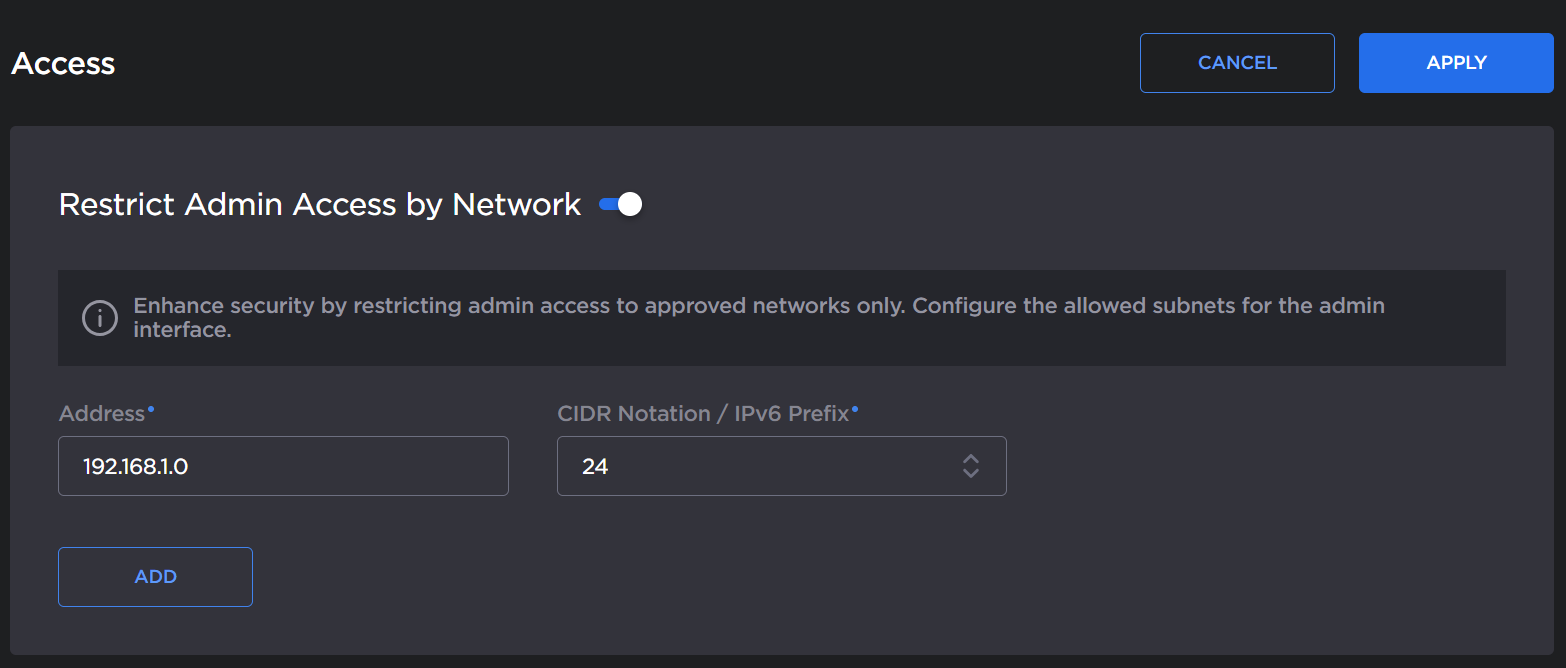
Access Example
Click the Apply button.
A reboot is required for the settings to take effect. In the sidebar click,
>  Reboot.
Only users from the specified addresses are allowed access to the web interface. If a user outside the specified address ranges attempts to connect to the web interface, a 403 Forbidden message is received in their browser:

403 Forbidden