
Adding a CineLink Encoder
To add a CineLink encoder:
Click the user icon in the top right corner and select Admin.
On the side menu, click CineLinks.
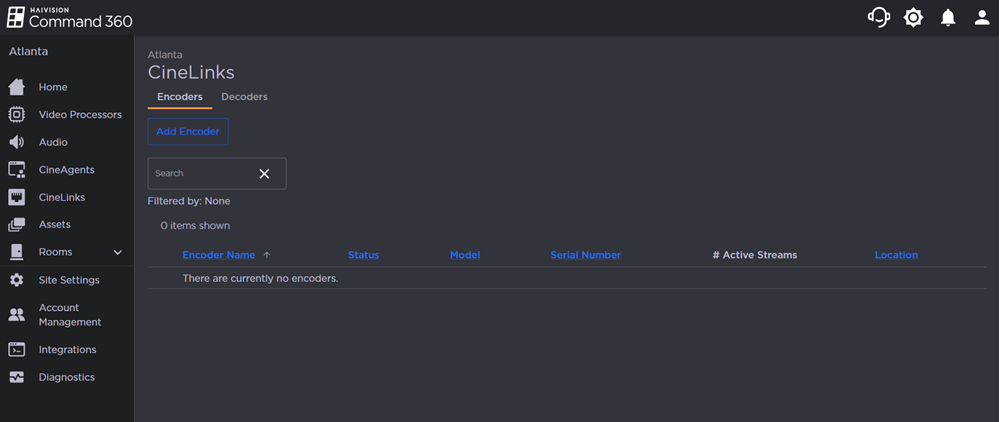
Click the Add Encoder button. The Add CineLink Encoders side panel opens on the right.
Select a Scan Method: Automatic or Manual.
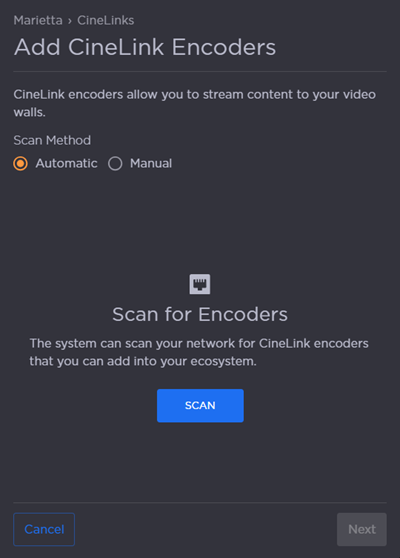
If Automatic is selected, click Scan to populate the side panel with a list of CineLink encoders found on your network.
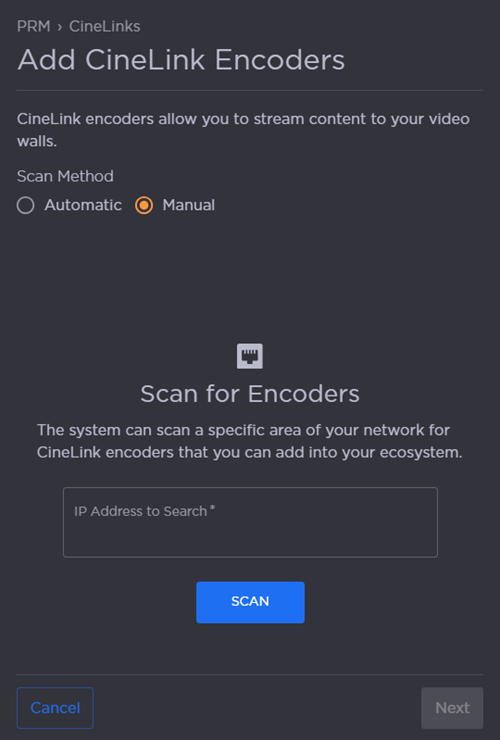
If Manual is selected, enter the IP Address to Search and then click Scan.

Note
It may require multiple scans to obtain all CineLinks on the network. If the expected CineLink is not appearing in the side panel, click Scan again.
Click the check box next to each CineLink you wish to add.
Click Next.
(Optional) Encoder Name, IP Address, Model, and Serial Number auto-populate with the encoder details. The Encoder Name and Location can be edited if desired.
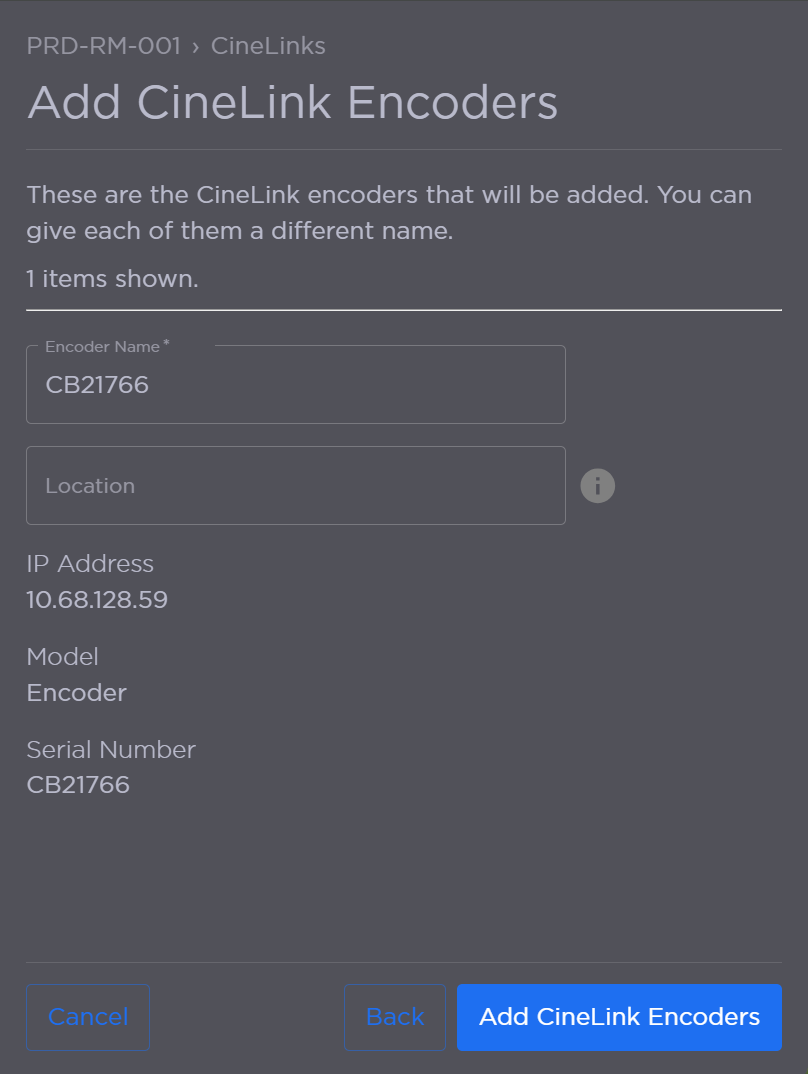
CineLink Encoder Details
Click Add CineLinks Encoders. The encoder now appears on the CineLink management summary page.
The status should indicate the machine is online and available for use. If the status is Offline, check the device and ensure all settings align with network requirements.